Bootstrap Studio: The Visual Website Builder That Doesn't Insult Developers
Bootstrap Studio: The Visual Website Builder That Doesn’t Insult Developers
I’ll be honest—when someone says “visual website builder,” I immediately think of bloated code, vendor lock-in, and monthly subscriptions that add up fast. You know the type: drag some boxes around, get a site that looks okay but exports 10MB of minified garbage that no developer would touch with a ten-foot pole.
But Bootstrap Studio is different. It’s a desktop application that lets you design websites visually, but here’s the kicker—it actually exports clean, production-ready HTML, CSS, and JavaScript that you can hand off to a developer or deploy directly. No proprietary classes. No vendor lock-in. Just standard web code.
And the pricing is reasonable: $29/year or $59 for a lifetime license. The lifetime license includes free updates, hosting for up to 5 sites, and e-commerce features.
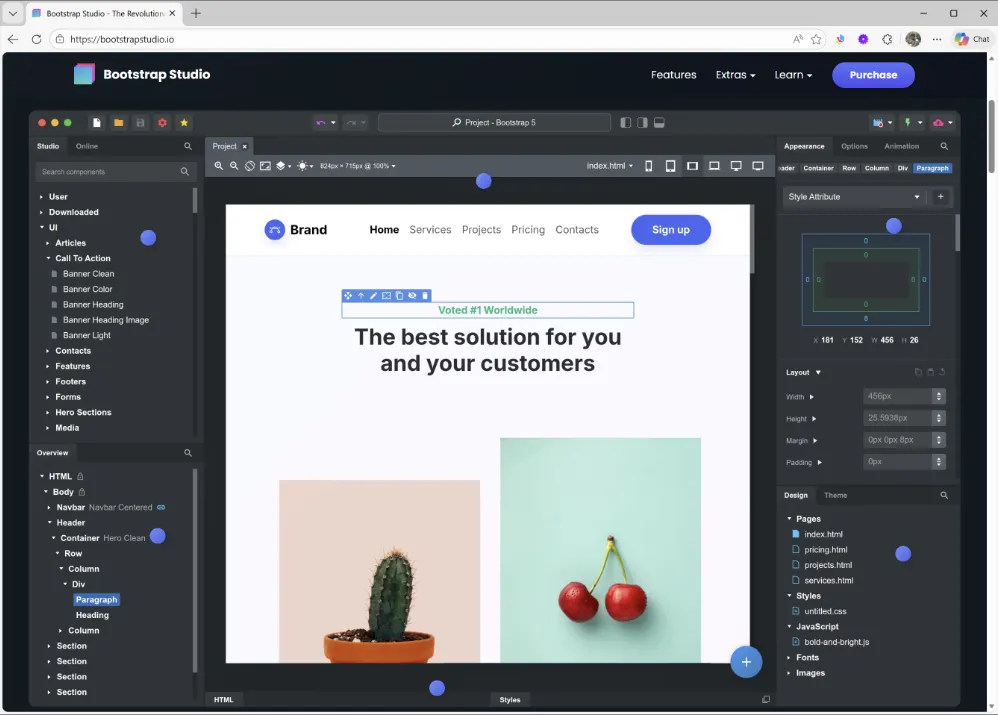
What is Bootstrap Studio?
Bootstrap Studio is a desktop application (available for Windows, Mac, and Linux) for building websites visually. It’s built on the Bootstrap framework—the most popular CSS framework in the world—but you’re not stuck with the “Bootstrap look.” You have full control over styling.
Here’s what makes it interesting: it combines drag-and-drop convenience with hand-coded quality. You drag components onto a canvas, customize them visually or in code, and when you export, you get clean HTML files that you can host anywhere.
No server required. No database. No monthly fees. Just static files you own completely.
And recently, Bootstrap Studio added some significant capabilities:
- Built-in blogging system - Create and manage blog posts, recipes, portfolios, or any post-type content
- E-commerce integration - Add shopping cart functionality via Reflow
- Smart Forms - Simple form-to-email solution with Google CAPTCHA built in
This isn’t just for marketing sites anymore. It’s becoming a legitimate tool for building complete static sites with dynamic features.
Why Bootstrap Studio Makes Sense
Let me break down why this approach is compelling.
Visual Design Without Compromise - You get to design in a visual editor, see everything in real-time, and still get code that’s clean enough to hand off to a developer. Most visual tools force you to choose between convenience and code quality. Bootstrap Studio gives you both.
No Vendor Lock-In - The exported HTML files are yours. Edit them in VS Code. Deploy them to Cloudflare Pages, Netlify, GitHub Pages, or even traditional hosting. There’s nothing proprietary tying you to Bootstrap Studio. You’re free to leave anytime.
Fast Prototyping - Whether you’re building a marketing site or prototyping a web application, Bootstrap Studio speeds up the process significantly. Build and iterate in hours instead of days. I use it constantly for spinning up quick marketing landing pages for ad-hoc projects—the kind of stuff that needs to be live yesterday. What would take me a full day hand-coding, I can knock out in a couple of hours with Bootstrap Studio.
High-Fidelity Mockups - Need to pitch a project or get client approval? Bootstrap Studio lets you create pixel-perfect, interactive prototypes that clients can actually click through. It’s far more convincing than static design files from Figma or Adobe XD. Stakeholders see the real thing, working in a browser.
Web App UI Design - This is underrated: Bootstrap Studio is excellent for designing and prototyping web application interfaces. Build your admin panel, dashboard, or SaaS UI visually, test it with users or stakeholders, and then hand off the HTML to your development team as a starting point. It eliminates the “translation” phase where developers interpret design files.
Here’s my workflow: I use Bootstrap Studio to design and confirm UI/UX with clients before writing a single line of backend code. I’ll build out the entire interface—login screens, dashboards, forms, whatever the project needs—and let the client click through it. They see exactly how the application will look and feel. We iterate quickly, make changes on the fly, and don’t commit to backend development until everyone agrees this is how the app should work. It saves so much time and prevents expensive rewrites later.
And managing responsive design? So much easier in Bootstrap Studio than hand-coding. You see all three breakpoints at once, adjust spacing and layout visually, and catch issues immediately. No more “oh crap, this breaks on mobile” moments after you’ve already built everything.
Bootstrap Foundation - Bootstrap Studio is built on Bootstrap, which means you get a battle-tested CSS framework with excellent responsive behavior, accessibility features, and familiar class names. But you’re not limited—customize the Bootstrap variables, add your own CSS, or mix in other frameworks.
Production-Ready Output - The code isn’t perfect, but it’s clean enough for production. Standard Bootstrap classes, semantic HTML, and readable structure. If you need to customize later, you can.
Affordable Pricing - Choose between $29/year or $59 for a lifetime license. The lifetime option gives you free updates forever, hosting for up to 5 sites, and e-commerce features. Compare that to Webflow ($14-39/month), Framer ($5-30/month), or even WordPress hosting ($10-30/month). Bootstrap Studio’s lifetime license pays for itself in a couple of months.
Free Hosting Included - The lifetime license includes free static website hosting for up to 5 websites. No additional hosting costs, no setup complexity—just one-click publishing directly from the app. Perfect for getting sites live quickly without managing hosting accounts.
More Than Static Pages - With blogging built-in, e-commerce via Reflow, and functional forms, Bootstrap Studio handles more than just static brochure sites. You’re building complete websites, not just prototypes.
Key Features That Stand Out
Let me walk you through what makes Bootstrap Studio powerful:
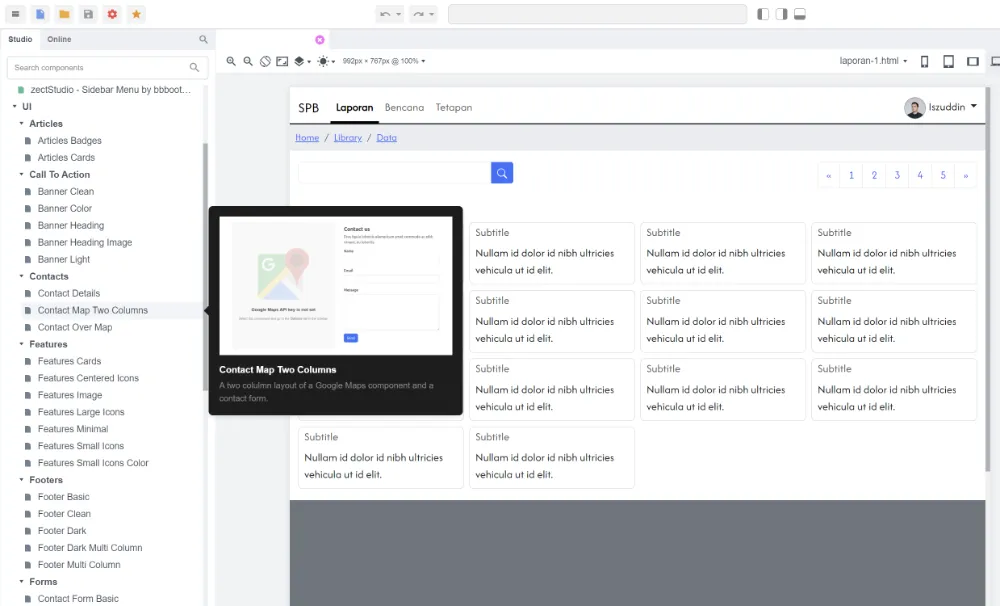
Component Library - Hundreds of pre-built components: headers, hero sections, pricing tables, testimonials, galleries, forms, footers—drag them onto your canvas and customize. No need to build everything from scratch.
Custom Components - Create your own reusable components. Build a custom card design once, save it, and reuse it across projects. This is huge for agencies or freelancers with clients who need consistent branding.
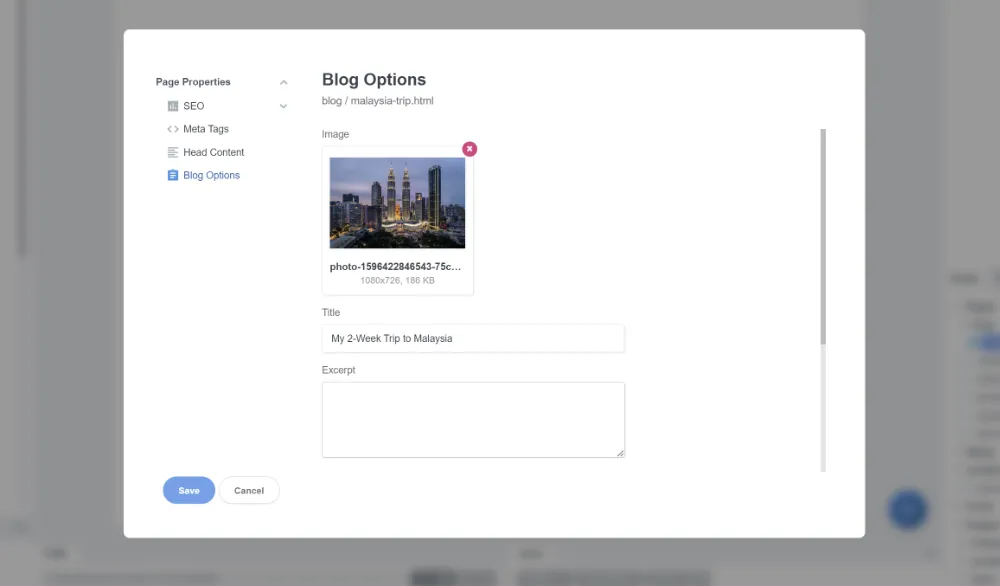
Blogging System - Bootstrap Studio now has built-in blogging. You can create and manage blog posts, recipes, portfolio items, case studies—any post-type content. It’s not as blog-focused as Publii, but if you’re building a complete site and need a blog as one component, it works well.
E-Commerce via Reflow - Want to sell products on your static site? Bootstrap Studio integrates with Reflow for shopping carts, product management, and checkout. Reflow handles the dynamic parts (cart, checkout, order management), while your site remains static. Reflow’s free tier is generous, and paid plans are reasonable.
Smart Forms - Bootstrap Studio includes Smart Forms, a built-in form-to-email solution with Google CAPTCHA. For simple contact forms and inquiries, it’s perfectly adequate. We’ll talk about when to use FiraForm instead in a bit.
Responsive Design Tools - Preview your site across mobile, tablet, and desktop breakpoints simultaneously. Adjust styling for each breakpoint. See changes in real-time. This alone saves hours compared to hand-coding and constantly resizing your browser.
Bootstrap Customization - Don’t like Bootstrap’s default blue buttons? Customize Bootstrap variables directly in the UI without writing SASS. Change colors, spacing, typography—make Bootstrap your own.
Google Fonts Integration - Browse and preview Google Fonts directly in the app. Change fonts with a click. See the results immediately.
HTML/CSS/JavaScript Editing - At any point, you can switch to code view and edit the raw HTML, CSS, or JavaScript. Need custom logic? Write it. The visual editor and code editor work together seamlessly.
Image Optimization - Upload images, and Bootstrap Studio automatically converts them to WebP and generates responsive image variants. Your site loads faster without you thinking about it.
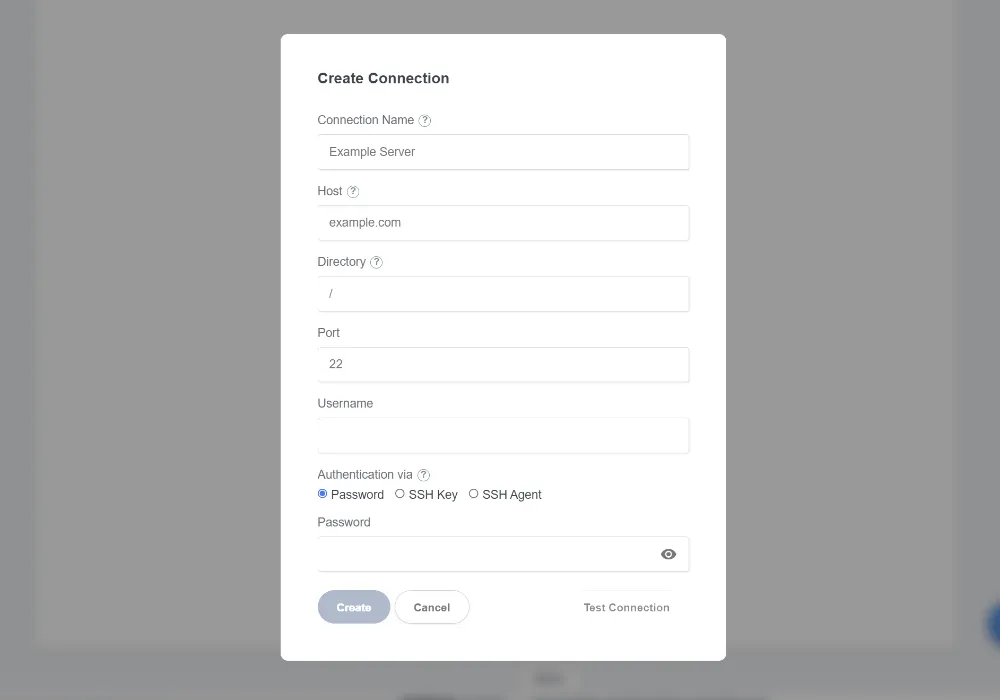
Built-in FTP/Export - Publish directly via FTP/SFTP, or export the files to deploy however you want. Integrate with Git for version control.
Free Static Hosting - The lifetime license includes free hosting for up to 5 websites. One-click publishing directly from the app—no need to set up external hosting accounts if you don’t want to. Your sites are hosted on fast, reliable infrastructure.
Real-Time Preview - Changes appear instantly. Adjust padding, change colors, move elements—you see the result immediately across all breakpoints.
Who Should Use Bootstrap Studio?
Bootstrap Studio isn’t for everyone, but it’s perfect for:
Web Designers Who Want Speed - You know design, you understand HTML/CSS, but you want to build faster. Bootstrap Studio gives you visual tools without dumbing things down.
Product Teams Prototyping Web Applications - Design the UI/UX for your SaaS product, test with stakeholders, get feedback, iterate quickly. Then hand off working HTML to your developers. They get a head start instead of translating Figma files from scratch.
Freelancers Building Client Sites - Speed matters when you’re billing by the project. Bootstrap Studio lets you deliver professional results quickly.
Agencies Pitching Projects - Create realistic, clickable demos that win client approval. Don’t just show static mockups—show a working prototype they can interact with in their browser.
Developers Who Prototype First - Sometimes you want to see the layout before writing code. Build it visually, export the HTML, and refine from there.
Small Business Owners - If you’re comfortable with design tools but don’t want to code everything from scratch, Bootstrap Studio is accessible without being limiting.
E-Commerce Site Builders - Need a fast, secure online store without WordPress or Shopify? Bootstrap Studio + Reflow gives you a static e-commerce site.
UX Designers - Deliver functional prototypes, not just wireframes. Stakeholders can interact with your design in a real browser, giving you better feedback.
Bloggers Wanting Design Control - Publii is simpler for pure blogging, but if you want more design flexibility and don’t mind a slightly steeper learning curve, Bootstrap Studio delivers.
Real-World Workflow
Here’s what it actually looks like to use Bootstrap Studio, depending on what you’re building:
For Marketing Sites & Blogs:
1. Install and Create a Project - Download from bootstrapstudio.io, install, and create a new site. Takes about 5 minutes.
2. Choose a Template or Start Fresh - Bootstrap Studio includes several templates. Start with one to learn the interface, or go blank canvas if you know what you want.
3. Build Your Pages - Drag components onto the canvas. A header, a hero section, some feature cards, a testimonials section, a footer. Customize colors, text, images.
4. Set Up Blogging (Optional) - If you need a blog, create a blog section, set up post templates, and start writing posts directly in Bootstrap Studio.
5. Add E-Commerce (Optional) - If you’re selling products, integrate Reflow. Add product components, connect them to your Reflow account, and you’re live.
6. Customize Styling - Adjust Bootstrap variables, add custom CSS, change fonts. Make it yours.
7. Preview Responsive Behavior - Check mobile, tablet, desktop views. Adjust spacing and layout for each breakpoint.
8. Configure Forms - Use Smart Forms for simple contact forms, or integrate FiraForm for advanced features (we’ll cover this below).
9. Export Your Site - Hit export, and Bootstrap Studio generates all your HTML, CSS, JavaScript, and image files.
10. Deploy - Use Bootstrap Studio’s free hosting (up to 5 sites included), or upload to Cloudflare Pages, Netlify, GitHub Pages, or any static host. You’re live.
For Web App Prototyping:
1. Design Your Application’s UI - Build the screens visually: login pages, dashboards, data tables, form interfaces, settings pages.
2. Create Interactive Navigation - Link pages together. Build a realistic user flow that stakeholders can click through.
3. Add Realistic Content - Use real data or realistic placeholders. Forms, tables, charts, controls—make it feel like the actual application.
4. Preview the Complete User Flow - Walk through the entire experience. Find UX issues before any code is written. This is where I catch things like “wait, where does the user go after they submit this form?” or “this button placement doesn’t make sense in the actual workflow.”
5. Share with Stakeholders - Export the prototype and host it on a staging server, or use Bootstrap Studio’s preview server. Get feedback. I’ve found that clients respond way better to clicking through a working prototype than looking at static mockups. They can actually experience the interface, which leads to much more useful feedback.
If you have the lifetime license, take advantage of the free hosting (up to 5 sites). You get a free subdomain ending with .bss.design—perfect for sharing prototypes with clients without setting up your own hosting. Just hit publish, send them the link, and they can start clicking through immediately.
6. Refine and Iterate - Make changes quickly based on feedback. Visual editing speeds this up dramatically. Client says “can we move this to the sidebar instead?” Done in five minutes. Try doing that after you’ve already built the backend.
7. Export as a Development Foundation - Hand off the HTML/CSS to your development team. They use it as a starting point, avoiding the “translation” phase from design tools like Figma. I don’t touch backend programming until we’ve nailed the UI/UX. It’s a game-changer for preventing expensive rewrites when clients realize the interface doesn’t match what they had in mind.
Total time from idea to clickable prototype? A few hours instead of a few days.
The Code Quality Question
Let’s address the elephant in the room: visual builders usually produce terrible code.
I’ve seen it all. Webflow’s proprietary class names. WordPress page builders that inject inline styles everywhere. Wix’s JavaScript soup. Most visual tools prioritize ease of use over code quality, and the result is a mess no developer wants to touch.
Bootstrap Studio is different. The code isn’t perfect, but it’s usable.
Here’s what you get:
Clean, Semantic HTML - Standard HTML5 tags used correctly. Headings, sections, articles, navs—it’s structured the way a developer would write it.
Standard Bootstrap Classes - No proprietary naming. It’s just Bootstrap: container, row, col-md-6, btn btn-primary. Any developer familiar with Bootstrap can read and modify this code.
Readable Structure - The HTML is indented properly, organized logically, and commented where helpful. You can open it in VS Code and understand what’s happening.
Minimal Bloat - Bootstrap Studio doesn’t inject unnecessary divs or wrappers. The markup is relatively lean.
Easy to Hand Off - You can export the code and give it to a developer with confidence. They’ll recognize Bootstrap conventions and be productive immediately.
Is it as clean as a senior developer hand-coding from scratch? No. But it’s 90% of the way there, which is impressive for a visual tool.
How It Compares
Let’s be honest about where Bootstrap Studio fits in the ecosystem:
vs. Webflow - Webflow is more powerful for complex interactions and animations, but it’s subscription-based ($14-39/month), uses proprietary class names, and locks you into their hosting for full features. Bootstrap Studio is a one-time purchase, exports standard code, and lets you host anywhere. If you need advanced interactions, Webflow wins. If you want ownership and simplicity, Bootstrap Studio wins.
vs. WordPress Page Builders - WordPress page builders (Elementor, Divi, etc.) require WordPress, which means servers, databases, maintenance, and security updates. Bootstrap Studio exports static files—no backend to maintain, better performance, and cleaner code. WordPress still wins for complex, database-driven sites, but for marketing sites and blogs, Bootstrap Studio is simpler and faster.
vs. Hand-Coding - Hand-coding gives you complete control and the cleanest possible code. But it’s slower, especially for prototyping. Bootstrap Studio is much faster for building and iterating. If you’re a developer who loves coding every line, you probably don’t need Bootstrap Studio. But if you want to prototype quickly or hand off design work, it’s a massive time-saver.
vs. Figma/Adobe XD - Design tools like Figma and Adobe XD are great for design work, but they don’t export production-ready code. Developers have to interpret the designs and build everything from scratch. Bootstrap Studio exports working HTML/CSS. Clients and stakeholders can interact with a real prototype in the browser, not just view static images. The handoff to development is also smoother—developers start with functional markup instead of starting from zero.
vs. Publii - Publii is simpler and more focused on blogging. If you just want a blog, Publii is the easier choice and it’s free. Bootstrap Studio ($29/year or $59 lifetime) offers more design control, supports e-commerce, and is better for web app mockups, but it requires more technical comfort. Pick based on your needs and budget.
Potential Downsides (Being Honest)
Nothing’s perfect. Here are the trade-offs:
Not Free - Bootstrap Studio costs $29/year or $59 for a lifetime license. The lifetime version is the better value, giving you free updates, hosting (up to 5 sites), and e-commerce features. It’s affordable, but it’s not free like Publii.
Bootstrap Bias - Bootstrap Studio is built around the Bootstrap framework. If you hate Bootstrap or want to use a completely different approach (Tailwind CSS, for example), you’ll fight the tool. Bootstrap Studio is opinionated, and that opinion is “Bootstrap is good.”
Learning Curve - Bootstrap Studio is more complex than Publii but simpler than coding from scratch. If you’re not comfortable with HTML/CSS concepts, you’ll need to learn. It’s not a “zero knowledge required” tool.
E-Commerce Requires Reflow - E-commerce is possible, but it requires a third-party service (Reflow). Reflow’s free tier is generous, and the service is solid, but it’s another dependency. If you want full control over your e-commerce backend, you’ll need a different solution.
Desktop-Only - You can’t edit from your phone or tablet. Your workflow is tied to your desktop or laptop. If you need mobile editing, this isn’t the solution.
Collaboration Challenges - Like Publii, Bootstrap Studio is desktop software with local storage. Team collaboration requires workarounds (Git, Dropbox, etc.). It’s not as seamless as a cloud-based CMS where multiple users can log in and edit simultaneously.
For most freelancers, small agencies, and product teams, these limitations don’t matter. But it’s good to know what you’re signing up for.
Forms and Interactive Features (The FiraForm Connection)
Static sites are fantastic, but they traditionally lack backend features like form processing. Bootstrap Studio addresses this with Smart Forms, but let’s talk about when you might want FiraForm instead.
Bootstrap Studio’s Smart Forms - They have a built-in form-to-email solution with Google CAPTCHA that works right out of the box. For basic contact forms and simple inquiries, Smart Forms is perfectly adequate. It’s easy to set up, integrates directly in the visual editor, and just works.
For many use cases, you won’t need anything else.
When to Use FiraForm Instead:
- Advanced Features - You need file uploads or custom validation rules
- Data Control - You want more control over submission data (webhooks, custom integrations, API access)
- Spam Protection - You need detailed spam filtering, reCAPTCHA, or honeypot fields
- Complex Forms - You’re building surveys, job applications, registration forms, or lead generation forms with lots of fields
- Centralized Management - You want to manage form submissions across multiple sites in one dashboard
- Team Collaboration - Multiple people need access to submissions, or you need to route submissions to different team members
Workflow for FiraForm Integration:
If you decide you need FiraForm’s advanced features, here’s how it works:
- Use Bootstrap Studio’s form components to design your form visually—get the layout and styling exactly right
- Replace the form action with your FiraForm endpoint
- Or use FiraForm’s Free HTML Form Builder to generate the entire form, then paste the HTML into Bootstrap Studio using an HTML component
- Add FiraForm’s JavaScript for advanced client-side validation and better UX (optional)
- Export and deploy your site
You keep complete visual design control while gaining powerful form backend capabilities.
The bottom line: Smart Forms are great for simple forms. FiraForm is better for complex, business-critical forms. Choose based on your needs.
Need Forms For Your Static Site?
FiraForm is the headless form backend built specifically for static sites. No backend code needed—just point your forms to our endpoint and we'll handle submissions, validation, notifications, and more.
Free tier available • No credit card required
Getting Started
Ready to try Bootstrap Studio? Here’s your game plan:
1. Visit the Website - Head to bootstrapstudio.io.
2. Choose Your Version - Annual ($29/year) or Lifetime ($59). The lifetime license is the better deal—you get free updates forever, hosting for up to 5 sites, and e-commerce features included. Most people opt for the lifetime license.
3. Download and Install - Available for Windows, Mac, and Linux. Installation takes a few minutes.
4. Try a Template - Start with one of the included templates to learn how the interface works. Explore the component library, try editing text and images, preview responsive behavior.
5. Build Your First Site - Create a new project and build something simple. A landing page, a portfolio, a small business site—anything to get comfortable.
6. Set Up Blogging (If Needed) - If your site needs a blog, explore the blog features. Create a few test posts, customize the post template.
7. Add E-Commerce (If Needed) - If you’re selling products, sign up for Reflow, integrate it with Bootstrap Studio, and add some products.
8. Configure Forms - Use Smart Forms for simple contact forms, or set up FiraForm for advanced functionality.
9. Export Your Site - Generate the HTML files.
10. Deploy - Use Bootstrap Studio’s included free hosting (up to 5 sites), or upload to Cloudflare Pages, Netlify, GitHub Pages, or any static host. Bootstrap Studio’s hosting is great for quick deployment, while Cloudflare Pages and Netlify offer more advanced features and also have generous free tiers.
Total time from download to live site? Maybe an hour or two if you’re taking your time. Less if you’re just prototyping.
Conclusion
Bootstrap Studio fills a unique niche in the web development ecosystem. It’s visual design that respects developers. It’s fast prototyping that produces production-ready code. It’s a one-time purchase in a subscription-dominated world.
From marketing sites to web app prototypes, it handles diverse use cases. Create clickable demos that win client approval before writing production code. Design complete websites with blogs, e-commerce, and functional forms—all without touching a server.
Now with blogging and e-commerce integration, Bootstrap Studio is more capable than ever. It’s not just for prototypes or landing pages. It’s for building complete static sites that perform beautifully.
The code quality is solid. The export is clean. The workflow is fast. And you own everything—no vendor lock-in, no proprietary systems, just standard web code you can edit anywhere.
Built-in Smart Forms work for basic needs. FiraForm steps in when you need advanced form features. Reflow handles e-commerce. The static site ecosystem has matured to the point where you can build almost anything without a traditional server.
Whether you’re pitching a concept, building a prototype, shipping a production site, or designing a web application UI, Bootstrap Studio delivers. It’s worth trying if you’re tired of coding everything from scratch but refuse to sacrifice code quality.
For $59, you get a lifetime license with a tool that speeds up your workflow, maintains code quality, gives you complete ownership, and includes free hosting for up to 5 sites. That’s a trade-off worth considering.
Now go try it and see what you build.