How I Moved from WordPress to Static Sites with Cloudflare Pages
How I Moved from WordPress to Static Sites with Cloudflare Pages
I’ll be honest—I’ve been a WordPress guy for years. I built client sites, my own projects, everything on WordPress. The plugin ecosystem, the themes, the familiar dashboard—it all just made sense. But somewhere along the way, I had this nagging feeling that I was using a sledgehammer to hang a picture frame.
The WordPress Reality Check
Don’t get me wrong, WordPress is incredible for what it does. But here’s what started bothering me: I was running a full PHP application with a database just to serve… static content. Blog posts that changed maybe once a month. Marketing pages that were essentially fixed. And with that came the maintenance—security updates, plugin conflicts, database backups, caching plugins to make it fast, security plugins to keep it safe. It felt like I was spending more time maintaining the machine than creating content.
Then I deployed my first static site and had this “wait, what?” moment. No database. No PHP runtime. No security vulnerabilities to patch. Just HTML, CSS, and JavaScript files sitting on a CDN. And it was fast. Like, ridiculously fast. Oh, and did I mention that in most cases, hosting a static site is completely free? Yeah, that sealed the deal for me.
What Even Is a Static Site?
If you’re not familiar, here’s the simplest way I can explain it: a static site is just a collection of HTML files. When someone visits your website, the server doesn’t need to run any code or query a database—it just sends them the file. That’s it.
Think of it like this: WordPress is like a chef who cooks your meal to order every single time, even if you’re ordering the exact same dish. A static site is like having pre-cooked meals ready to go. Both get you fed, but one is way faster and doesn’t need a kitchen full of equipment.
The result? Better security (no server-side code to exploit), better performance (files served from a global CDN), and zero maintenance (no software to update).
My Current Setup: Astro and the Build Process
Now, I want to tell you about my current setup, but don’t let this scare you—you don’t need to do it this way. I use Astro to build my sites. I write my pages in markdown, use components for reusable bits, and run a build command that generates all my HTML files. For example, with FiraForm, I have documentation and blog posts that get compiled into static pages during the build.
But here’s the thing: this is just my workflow because I like writing in markdown and having a content management system that lives in my code. You absolutely don’t need this level of complexity to deploy a static site.
The Beautiful Simplicity: You Have Options
This is what I love most about static sites—the flexibility. You can create them however you want:
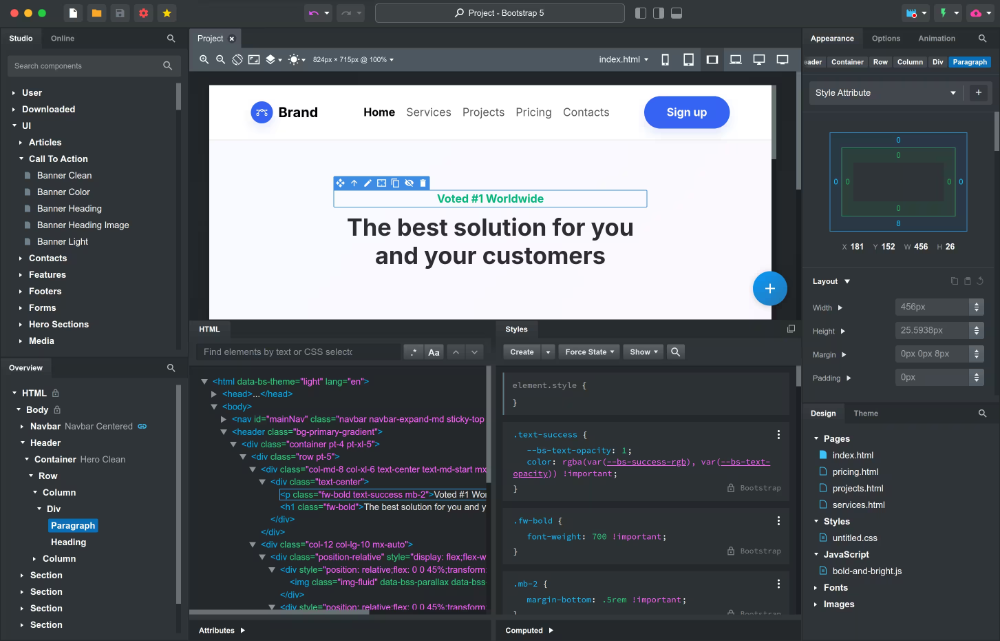
Use a Website Builder - I’m a huge fan of Bootstrap Studio. It’s a visual builder that exports clean, hand-coded HTML, CSS, and JavaScript. You design visually, then export the files. That’s it. Upload those files to Cloudflare Pages and you’re live.
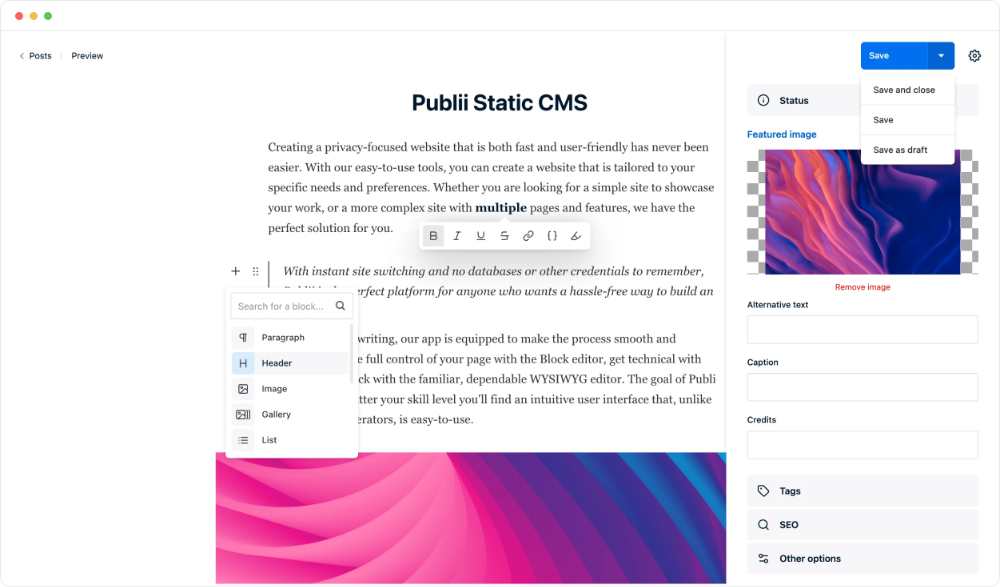
Desktop Blogging Software - Ever heard of Publii? It’s this awesome desktop app specifically for blogging that generates a complete static site. You write posts in a nice editor, hit publish, and it creates all the HTML files. No server needed.
Hand-Code Everything - Got HTML skills? Just write your HTML, CSS, and JavaScript files in a code editor. Old school, but it works perfectly.
Use a Framework (Static Site Generator) - These are tools that take your content (usually written in markdown) and templates, then generate all the HTML files for you automatically. Think of them as a build-time CMS—you get the convenience of writing in markdown and using reusable components, but the output is just static HTML. Like me with Astro (JavaScript). Or Next.js (JavaScript), Hugo (Go), Jekyll (Ruby), 11ty (JavaScript), HydePHP (PHP)—there are tons of options if you want a build process.
The point is: it’s just HTML files in the end. However you make them doesn’t matter. This flexibility is liberating after years of “the WordPress way.”
Why Cloudflare Pages Specifically?
Okay, so you’ve got your static files. Where do you host them? I chose Cloudflare Pages after trying a few options, and here’s why I’m sticking with it:
The Free Tier Is Insane - Unlimited sites, unlimited bandwidth, unlimited requests. I’m not exaggerating. Most of my projects run on the free tier without hitting any limits.
Global CDN Included - Your site gets distributed across Cloudflare’s entire edge network automatically. Someone in Tokyo gets the same fast load times as someone in New York.
Built-In Analytics - You get visitor analytics without adding tracking scripts that slow down your site.
Preview Deployments - Every Git branch gets its own preview URL. This is perfect for testing changes before they go live.
It’s Actually Free - Not a trial, not “free for small projects.” Actually free for most use cases.
The Build Process Demystified
Here’s something that confused me at first: when Cloudflare Pages mentions “build commands” and supporting Node.js, Python, PHP, etc., it’s not hosting a runtime for your site. Let me clarify:
For Build Time Only - These tools run once during deployment to generate your static files. If you’re using Astro, Next.js (in static export mode), Hugo, or any static site generator, it needs to run that build command.
Not For Hosting - Cloudflare Pages doesn’t run a Node.js server for your live site. It serves the HTML files that were generated during the build.
Completely Optional - If you’re using Bootstrap Studio or Publii or just hand-coding HTML, you don’t need a build process at all. You can upload a ZIP file of your HTML files and call it a day.
This was a lightbulb moment for me. I don’t need a server. I just need files.
Let’s Deploy This Thing
There are two main ways to deploy to Cloudflare Pages:
Option 1: Git Integration (Recommended)
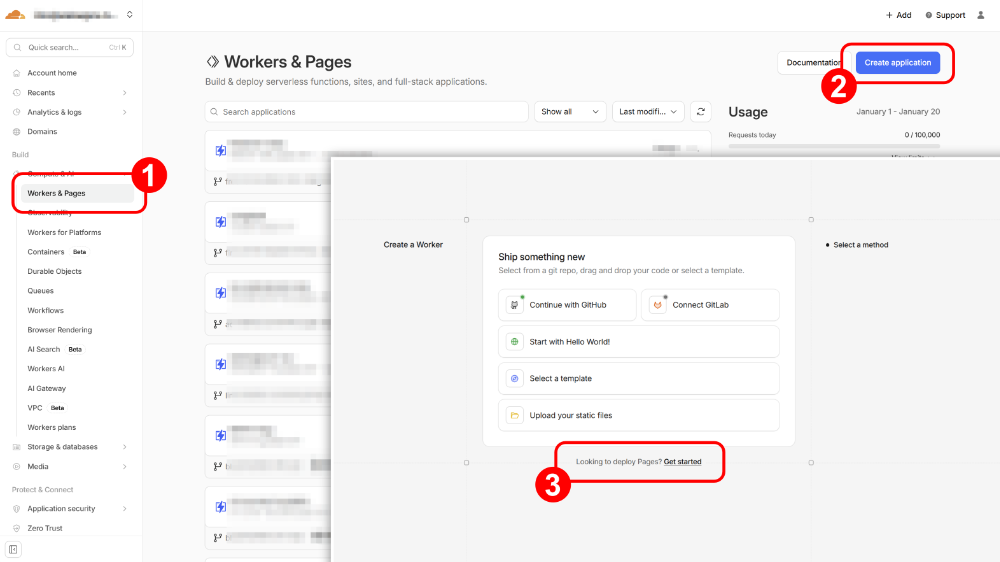
This is my preferred method. Connect your GitHub, GitLab, or Bitbucket repository to Cloudflare Pages. Every time you push changes, it automatically rebuilds and deploys. Here’s how:
- Push your project to a Git repository
- Go to Cloudflare Dashboard → Compute & AI → Workers & Pages
- Click on Create Application button
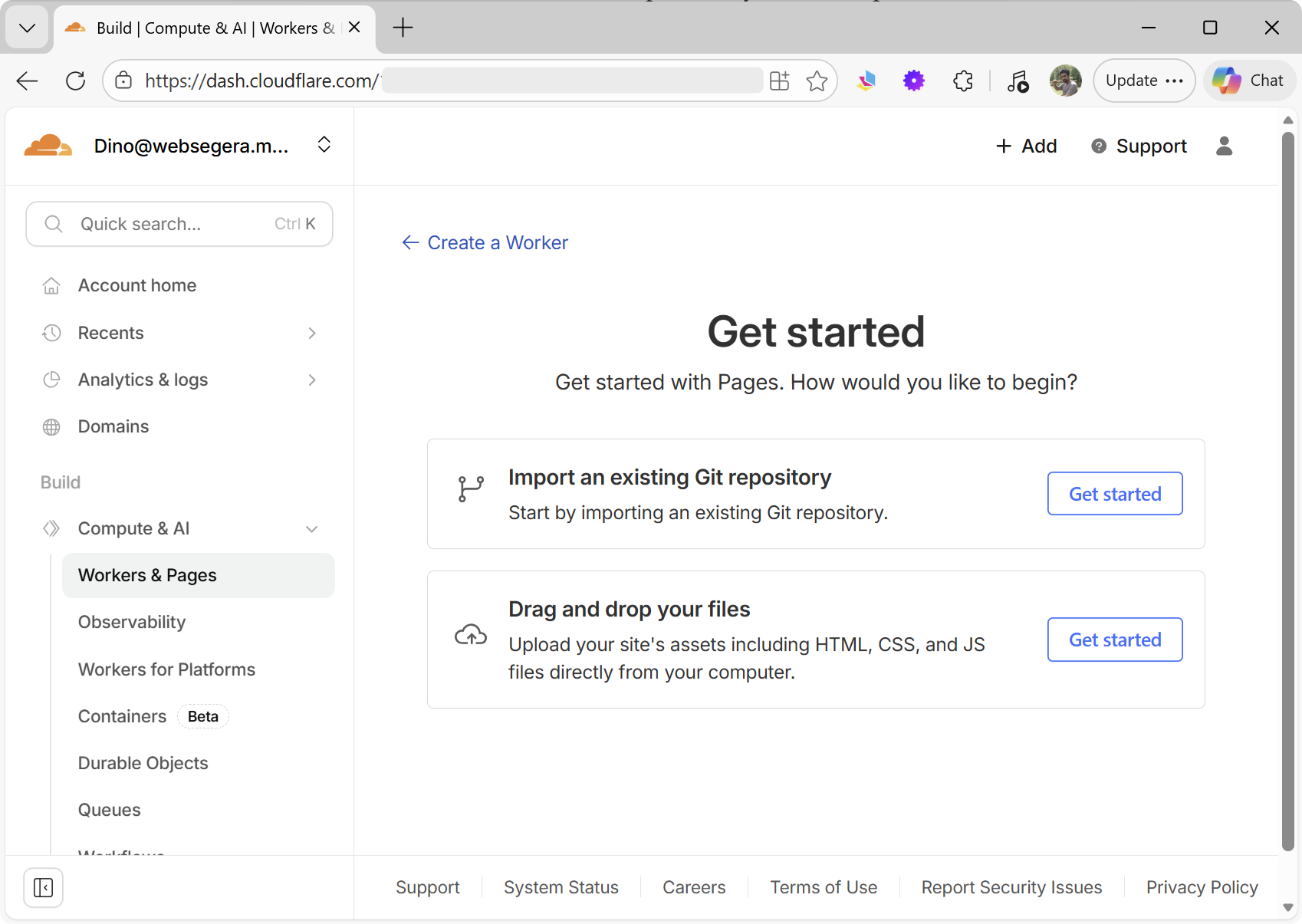
- At the bottom of the next page, you’ll see “Looking to deploy Pages? Get started” — click Get started
- Connect your repository
- Configure your build settings (if you have a build process)
- Deploy
For Astro, my build settings look like this:
- Build command:
npm run build - Build output directory:
dist - Root directory:
/(or wherever your project is)
Option 2: Direct Upload
No Git? No problem. Zip up your HTML files and upload them directly. This is perfect for:
- Quick prototypes
- Sites built with visual tools
- When you don’t want version control
Just drag and drop your ZIP file into the Cloudflare Pages interface. Done.
DNS: Do This Right From The Start
Here’s some advice I wish someone had given me: move your domain’s nameservers to Cloudflare. I know, I know—it sounds like vendor lock-in. But hear me out.
When your domain uses Cloudflare’s nameservers, you get:
Automatic DNS Management - Your Pages site automatically gets the right DNS records Edge Caching - Control how your assets are cached globally Page Rules - Create powerful rules for redirects, caching, and more DDoS Protection - Automatic protection at the edge Analytics - See what’s happening with your traffic Web Application Firewall - Additional security if you need it
The process is straightforward: Cloudflare gives you two nameservers, you update them at your domain registrar, and within 24 hours (usually much faster), everything’s live. I’ve migrated dozens of domains this way and never had issues.
Handling Redirects: The Migration Lifesaver
When I moved one of my sites to Cloudflare Pages, I had a problem: all my blog posts were at the root level (/my-post/), but in my new structure, they were under /blog/my-post/. If I didn’t handle this, every backlink and bookmark would break.
Enter the _redirects file. Create a file named _redirects (no extension) in your build output directory with redirect rules:
/old-post/ /blog/old-post/ 301
/another-old-post/ /blog/another-old-post/ 301

# Wildcard redirect for patterns
/posts/* /blog/:splat 301
Cloudflare Pages automatically reads this file and sets up the redirects. No configuration needed. The syntax is simple:
[old-path] [new-path] [status-code]You can use wildcards, splats, and placeholders. It saved me hours of manual configuration.
Want to learn more about all the redirect options available? Check out the official Cloudflare Pages redirects documentation.
Custom Error Pages: Make 404s Your Own
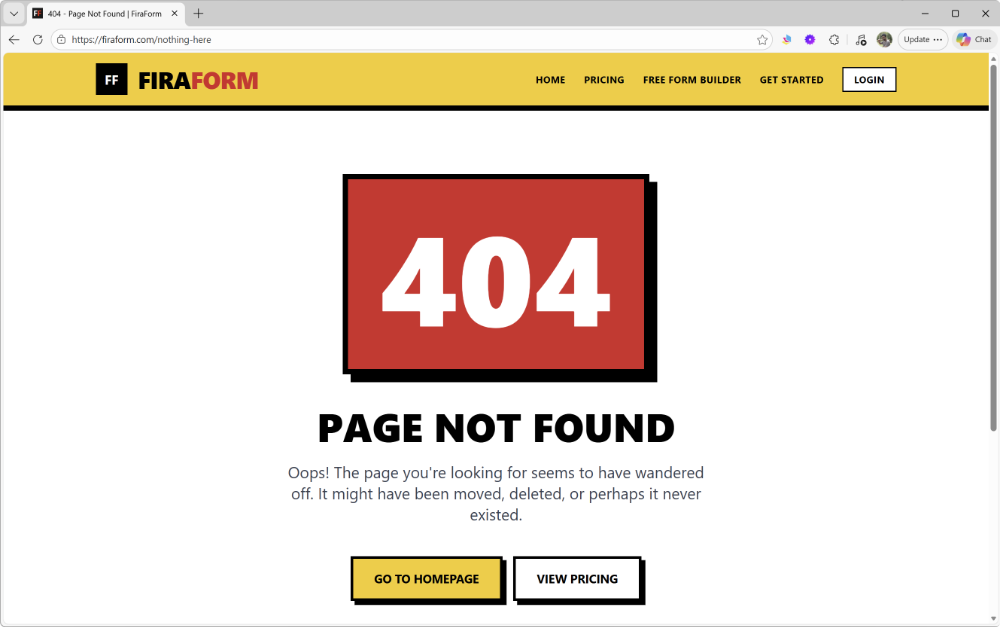
Here’s something simple but often overlooked: custom error pages. When someone lands on a page that doesn’t exist, you don’t want them seeing a generic “404 Not Found” message. You want to keep them on your site and help them find what they’re looking for.
With Cloudflare Pages, it’s incredibly simple. Just create a file named 404.html in the root of your build output directory. That’s it. Cloudflare Pages automatically serves this file whenever someone hits a page that doesn’t exist.
One thing to note: if you don’t create a 404.html file, Cloudflare Pages will serve your index.html instead. This might work for single-page applications, but for most sites, you’ll want a proper 404 page to give visitors a better experience.
I like to make my 404 pages helpful:
- A friendly message explaining the page doesn’t exist
- Links to the homepage and main sections
- A search box if you have one
- Maybe a bit of humor to lighten the mood
You can do the same for other error codes too—500.html for server errors, for example. But 404 is the most common one you’ll need.
The best part? Since it’s just an HTML file, you can style it to match your site perfectly. No configuration, no special setup. Just drop the file in and you’re done.
SSL Made Stupidly Easy
Remember when getting an SSL certificate was a whole ordeal? Not anymore. With Cloudflare Pages:
- Add your custom domain
- Wait like 30 seconds
- SSL certificate is automatically provisioned
- Your site is live with HTTPS
That’s it. No certificate files to manage, no renewals to remember.
And here’s a bonus: I use Cloudflare’s redirect rules to force all HTTP traffic to HTTPS. Under SSL/TLS settings, set the mode to “Full” or “Full (Strict)” and enable “Always Use HTTPS.” Now anyone who visits http://yoursite.com automatically gets redirected to https://yoursite.com.
The Performance Difference Is Real
I’m not going to throw benchmark numbers at you, but I will tell you this: my sites load noticeably faster. Pages that took 2-3 seconds on WordPress now load in under 500ms. Lighthouse scores went from the 70s and 80s to consistently hitting 95-100.
But beyond the raw speed, there’s something else: consistency. Every visitor, everywhere in the world, gets a fast experience because of the CDN. There’s no database that might be slow, no PHP processing that might spike under load. It’s just files being served from the nearest edge location.
Things I Wish I Knew Earlier
Start Small - Don’t migrate everything at once. Deploy a simple landing page first, get comfortable with the workflow, then tackle bigger projects.
Local Development - Use a simple local server for testing. Python’s python -m http.server or Node’s npx serve work great for static files.
Environment Variables - If you need API keys or environment-specific settings during build time, Cloudflare Pages supports environment variables. Set them in the project settings.
Build Minutes - The free tier includes 500 build minutes per month. Each build takes maybe 1-2 minutes. That’s plenty for most projects, but if you’re pushing constantly, you might hit it.
Preview URLs - Every deploy gets a unique URL. Use these for showing clients work-in-progress or testing before going live.
There’s No Dynamic Backend - This is obvious, but worth saying: if you need user authentication, form processing, or database operations, you need to use external services or APIs. That’s where something like FiraForm comes in handy—I use it for all my form submissions since my static site can’t process forms server-side.
When You Might Still Need Traditional Hosting
Static sites aren’t perfect for everything. You probably still need a traditional server if you’re building:
- E-commerce platforms with complex cart logic (though headless commerce is changing this)
- Web applications with real-time collaboration
- Sites that require server-side authentication and authorization
- Complex database-driven applications
But for marketing sites, blogs, documentation, portfolios, landing pages? Static sites are perfect.
The Bottom Line
Moving to static sites with Cloudflare Pages has been one of the best technical decisions I’ve made. Less time maintaining infrastructure, more time creating content. Better performance without caching plugins. Better security without security plugins. And a workflow that just makes sense.
If you’re currently wrestling with WordPress for a site that’s mostly static content, I’d encourage you to try this approach. Start with something small—a landing page, a personal blog, anything. Deploy it to Cloudflare Pages. Experience how fast it is, how simple the deployment becomes.
You might find, like I did, that you don’t need that sledgehammer after all.
Need Forms For Your Static Site?
FiraForm is the headless form backend built specifically for static sites. No backend code needed—just point your forms to our endpoint and we'll handle submissions, validation, notifications, and more.
Free tier available • No credit card required
Resources to Get Started
- Cloudflare Pages Docs: Comprehensive guides and examples
- Bootstrap Studio: Visual builder for static sites
- Publii: Desktop blogging software
- Astro: My framework of choice for build processes
- FiraForm: For handling form submissions on static sites (shameless plug!)
Have questions about deploying static sites? Drop a comment or reach out. I’m always happy to help someone escape WordPress maintenance hell.