How to Enable Auto-Reply Email in Firaform
How to Enable Auto-Reply Email in Firaform
Auto-reply email lets Firaform send an automatic confirmation to the person who submitted your form. It’s a quick way to acknowledge every submission without writing any backend code.
This tutorial walks through enabling it in your Firaform dashboard and configuring the message.
Before you start: plan availability
Auto-reply is disabled by default. To use it, your team must be on the Starter plan or above.
| Plan | Auto-reply |
|---|---|
| Free | ❌ Not available |
| Starter | ✅ Available |
| Business | ✅ Available |
| Premium | ✅ Available |
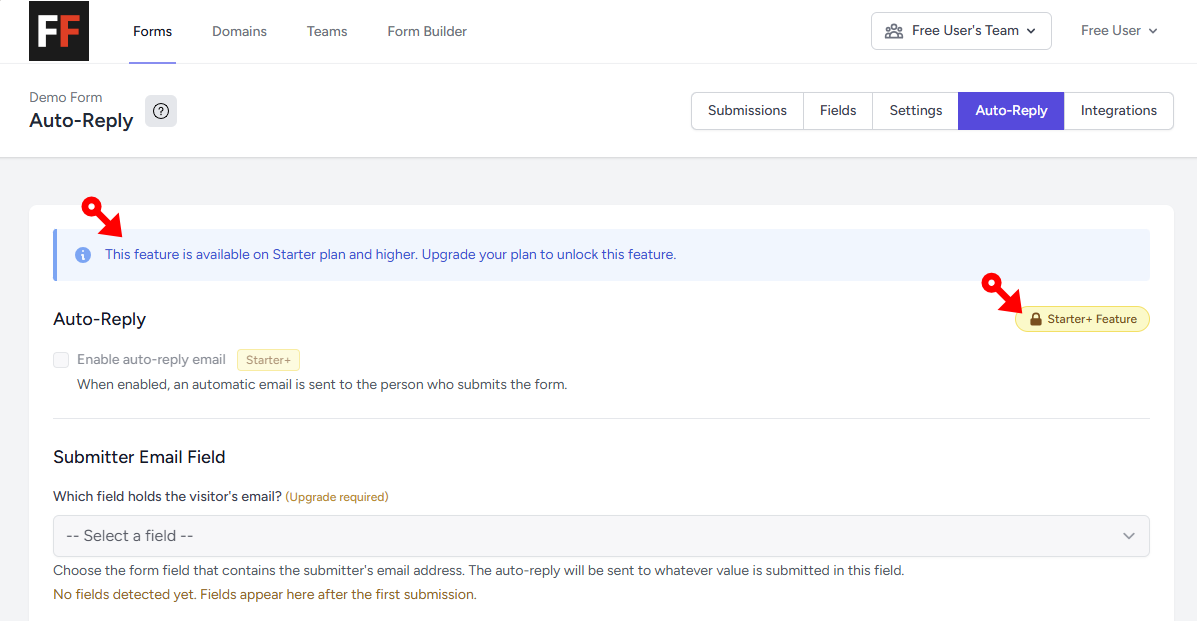
If you’re on the Free plan, you’ll see a yellow Starter+ badge next to the Enable auto-reply email checkbox and an upgrade banner at the top of the Auto-Reply page. Upgrade from the pricing page to unlock it.
1. Open your form and go to Auto-Reply
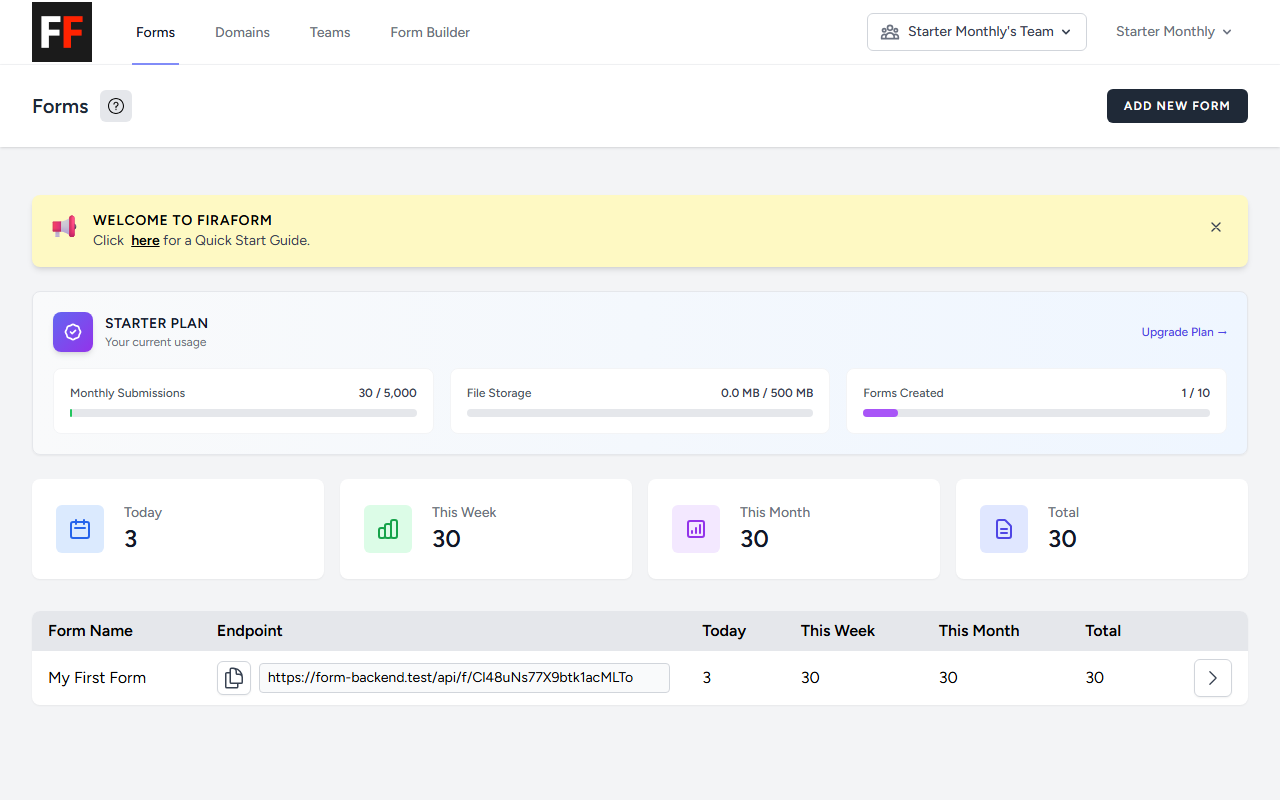
- Sign in to your Firaform dashboard. You’ll see your Forms list under the Starter plan.
- Click the form you want to enable auto-reply on.
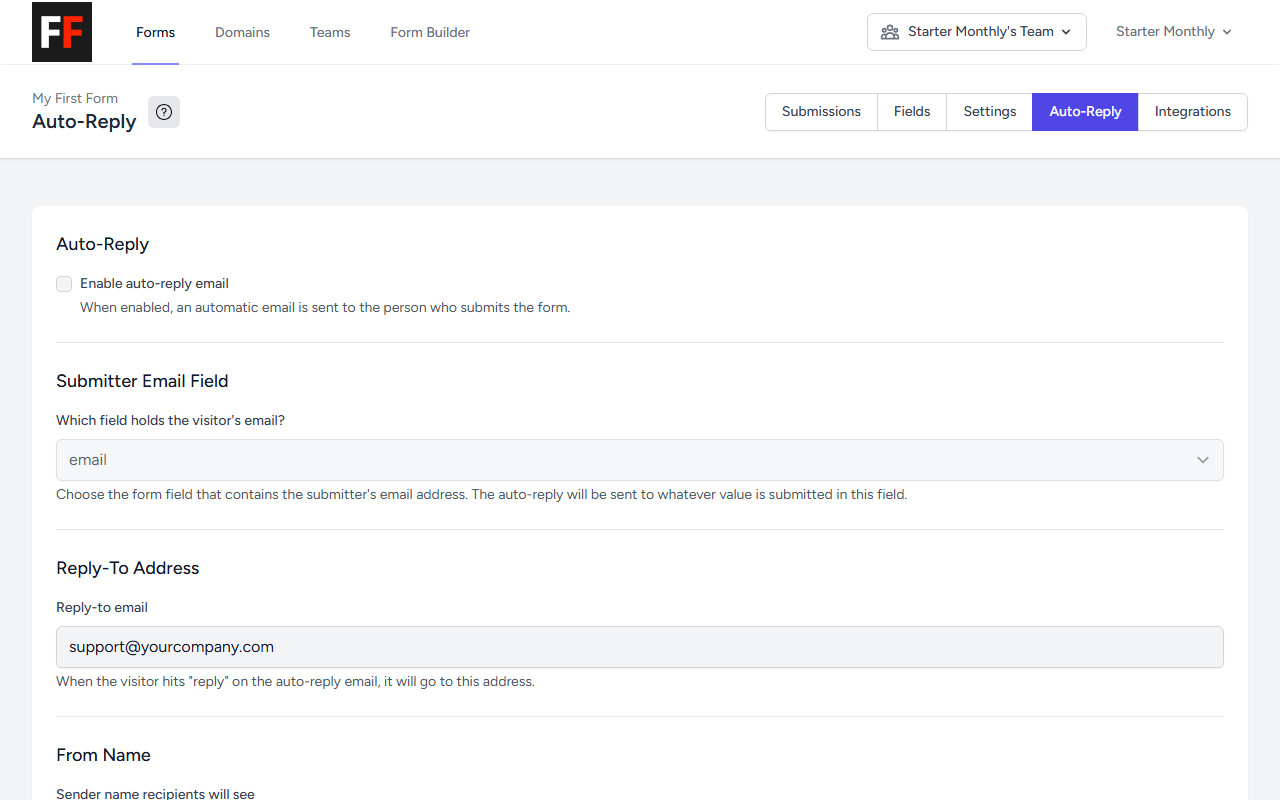
- Click the Auto-Reply tab in the form navigation.
2. Enable auto-reply
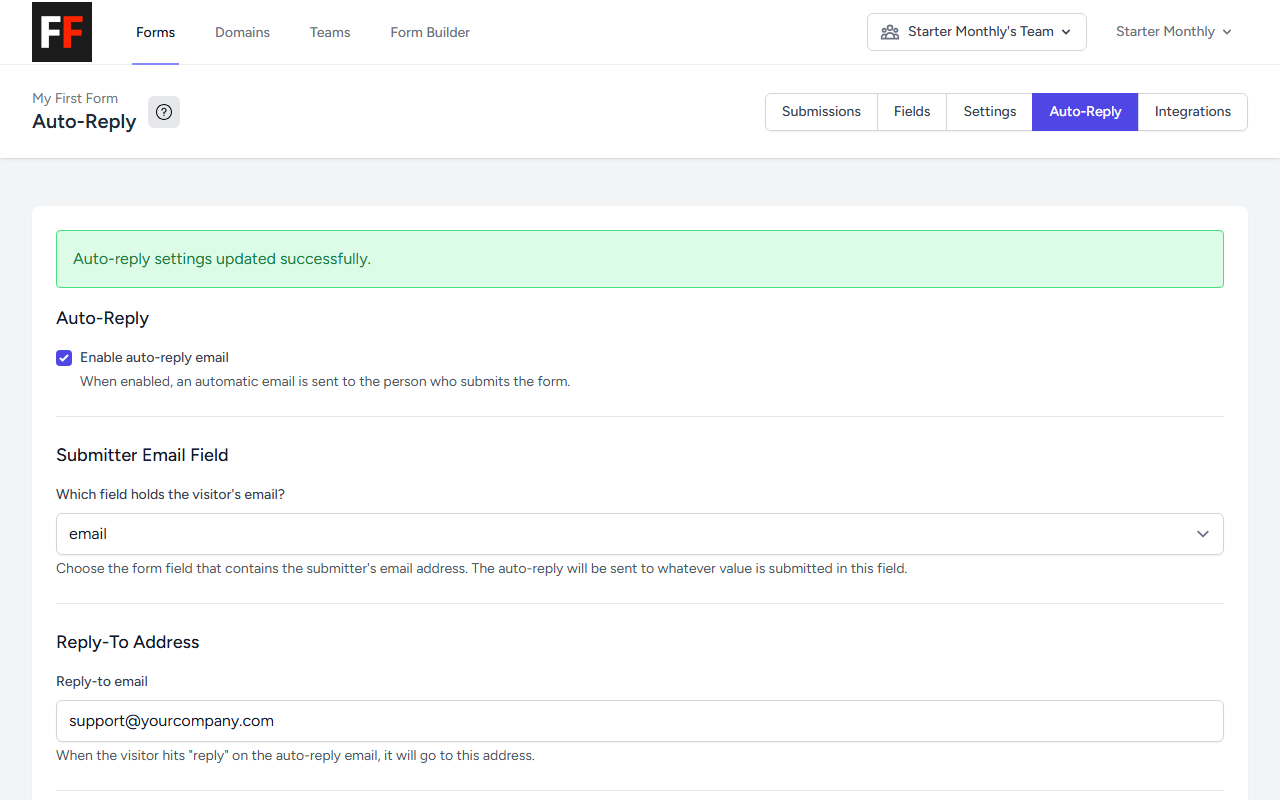
Check the Enable auto-reply email checkbox at the top of the page.
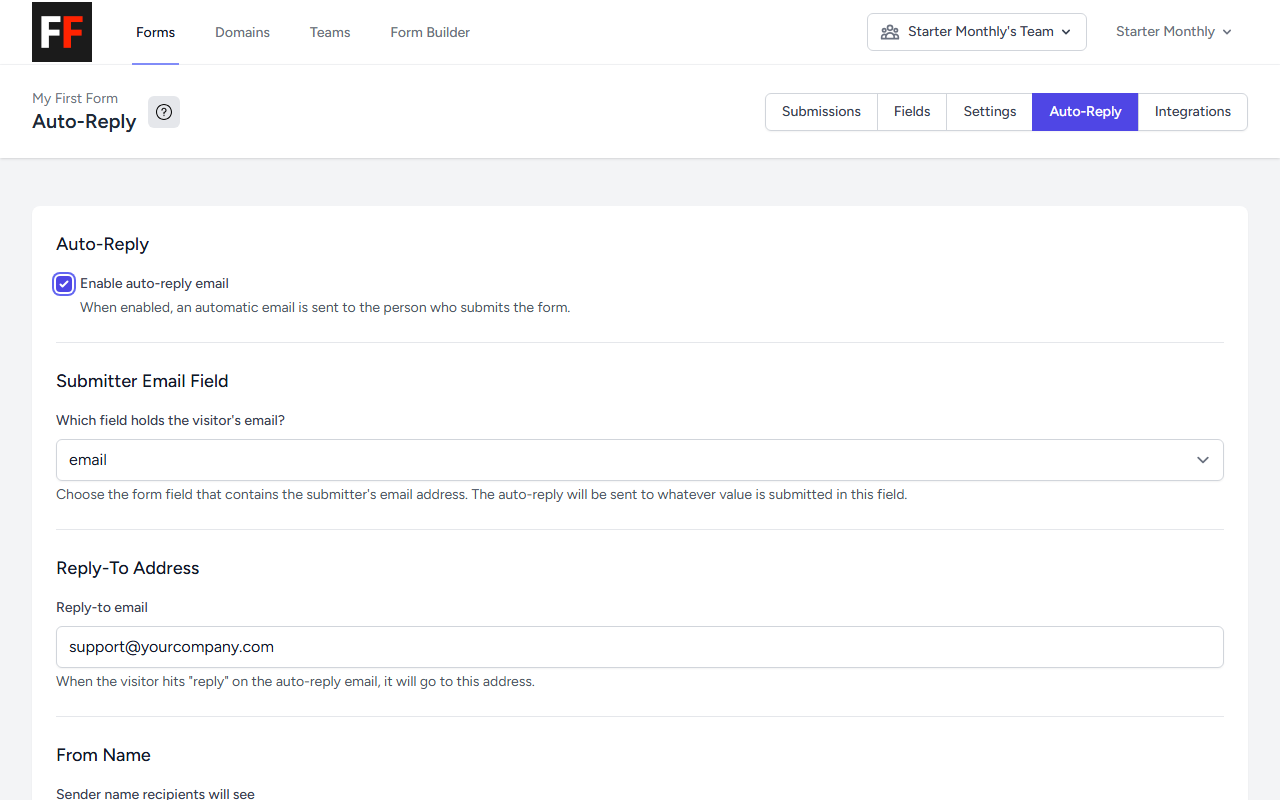
When enabled, the rest of the settings become editable.
3. Pick the submitter email field
The Submitter Email Field dropdown lets Firaform know which form field holds the visitor’s email address. This is the address the auto-reply will be sent to.
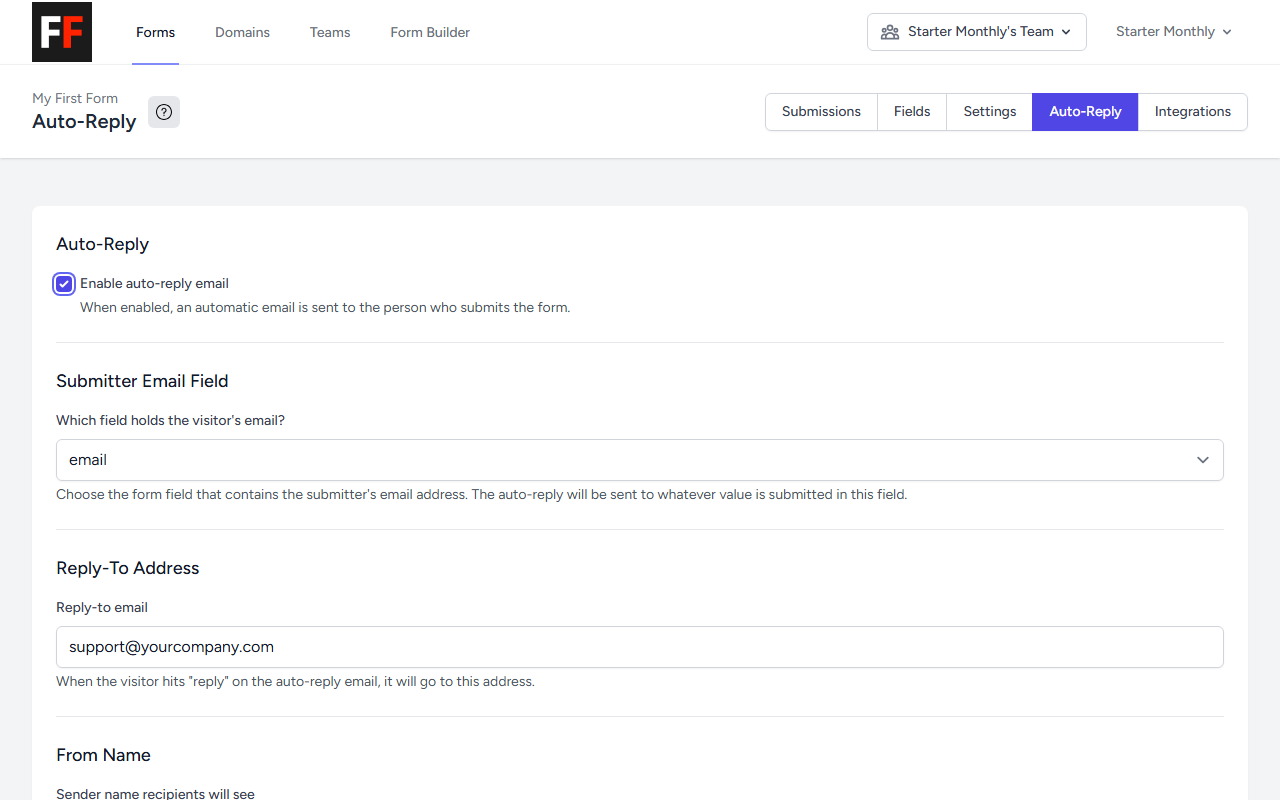
The dropdown is populated from the fields Firaform has auto-detected from previous submissions. If your dropdown is empty, submit your form once so Firaform can detect the fields, then come back.
4. (Optional) Set a reply-to address
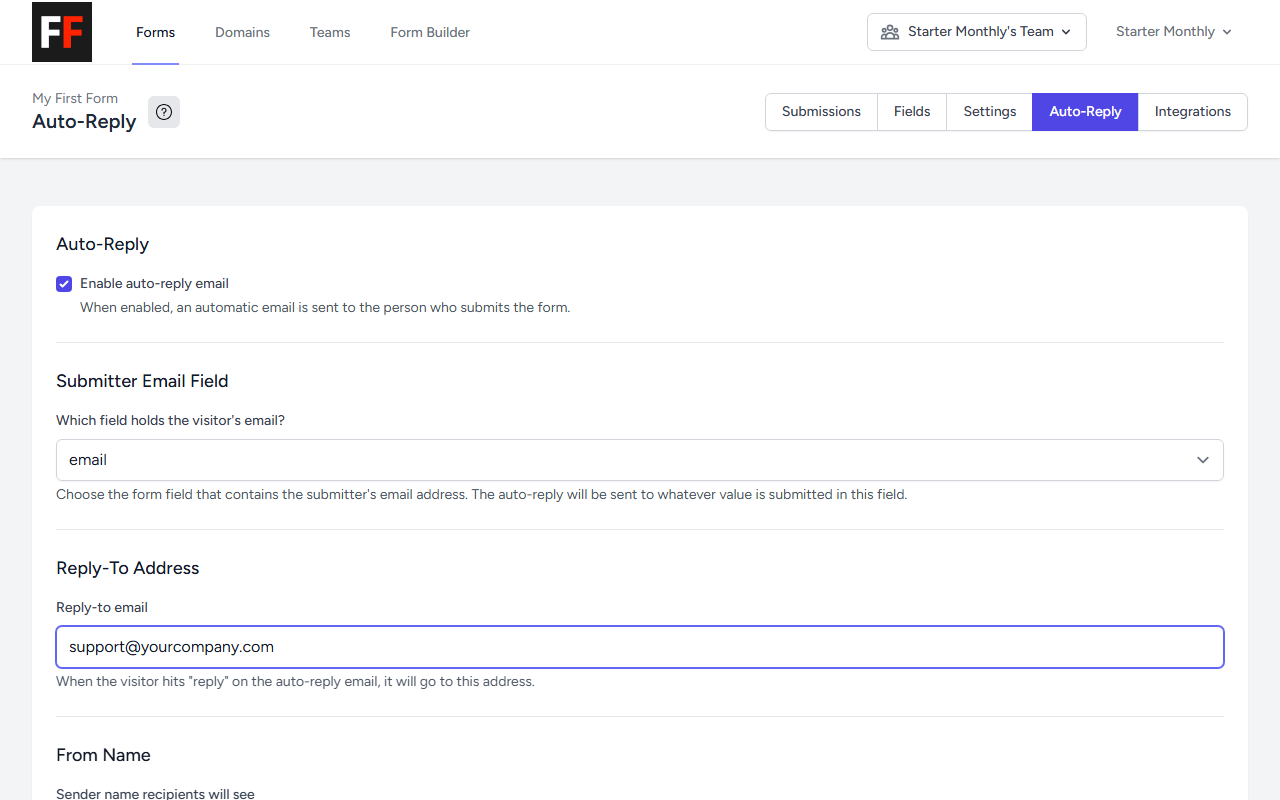
By default, replies to the auto-reply go to a Firaform-managed address. If you want responses to land in a shared inbox (for example, [email protected]), enter it in the Reply-to email field.
5. (Optional) Set a From Name
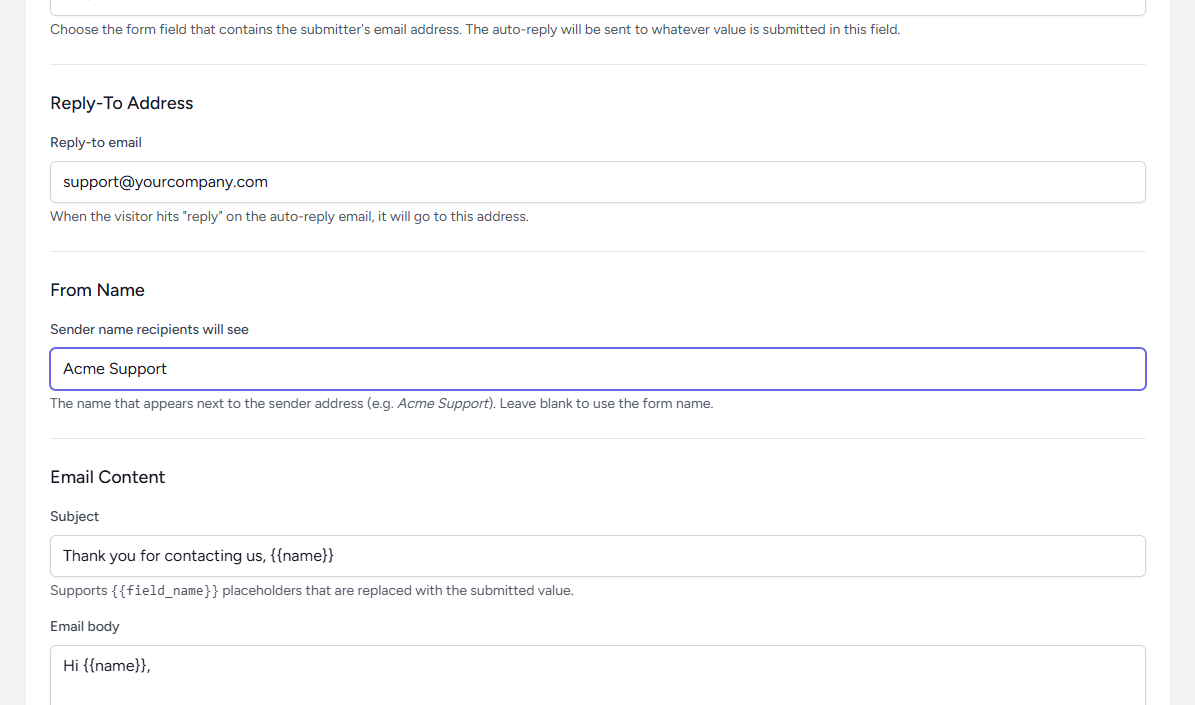
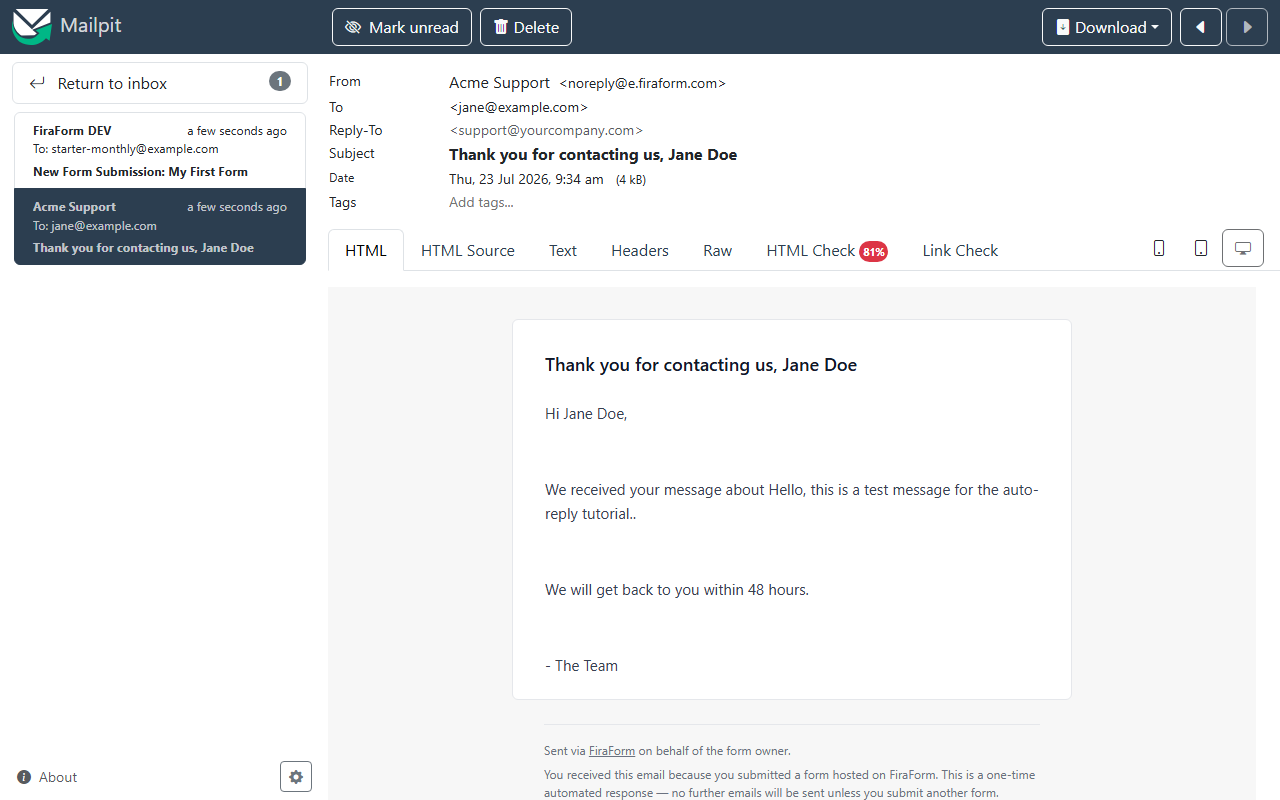
From Name controls the sender label that appears in the recipient’s inbox, next to the email address. For example, recipients see Acme Support <[email protected]> instead of a generic Firaform sender.
Leave it blank to use your form’s name.
6. Write the subject and body
The auto-reply uses plain text, and {{field_name}} placeholders are replaced with the values submitted through your form.
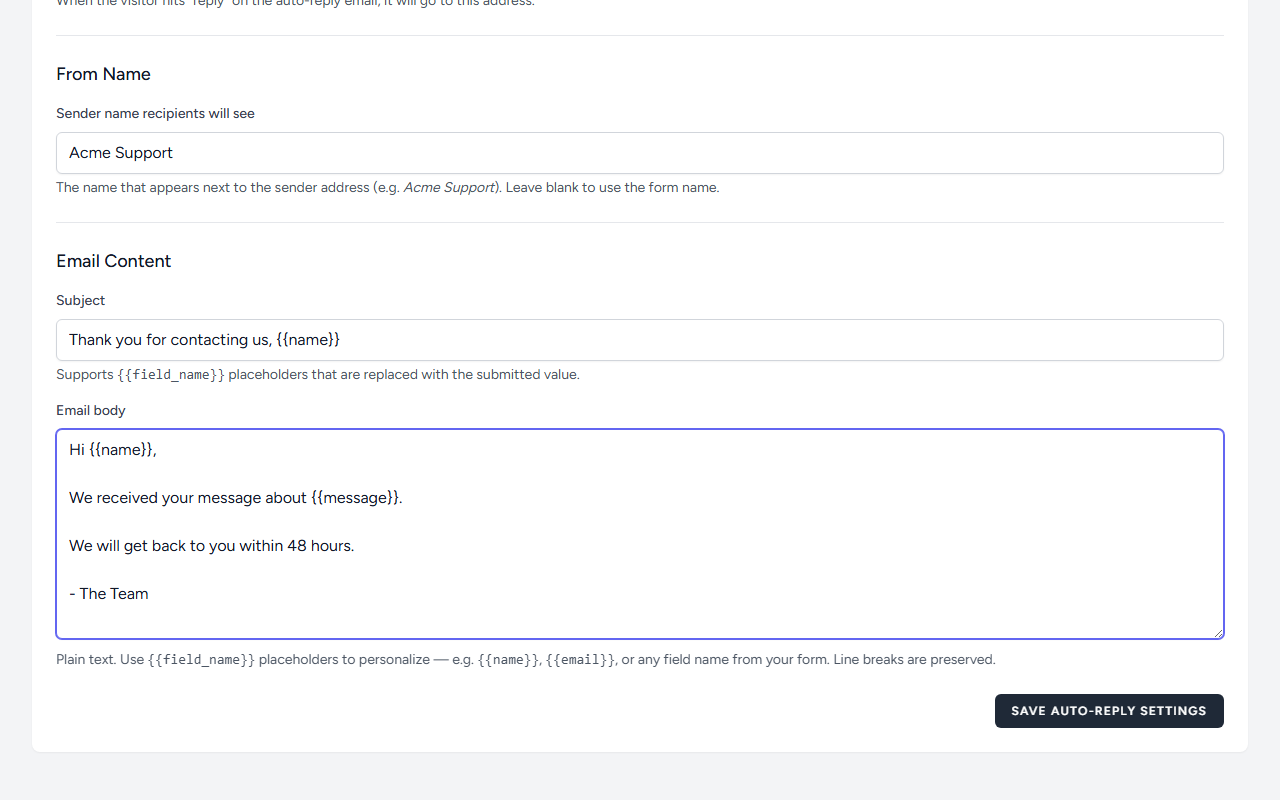
A simple starting point for a contact form (name, email, subject, message):
Subject: Thank you for contacting us, {{name}}

Body:
Hi {{name}},

We received your message about {{subject}}.
We will get back to you within 48 hours.

- The Team
The field name inside the placeholder must match the name attribute on your HTML form input. Common ones are name, email, subject, and message. If a placeholder references a field that doesn’t exist on the submission, Firaform leaves it as-is in the email.
7. Save your settings
Click Save Auto-Reply Settings. You’ll see a green success banner at the top of the page when the changes are saved.
8. Test with a real submission
Auto-reply is sent asynchronously after the submission passes spam checks. To verify it’s working:
- Open your site in an incognito or private window.
- Submit the form with a real email address you can check.
- Wait a few seconds, then look in your inbox.

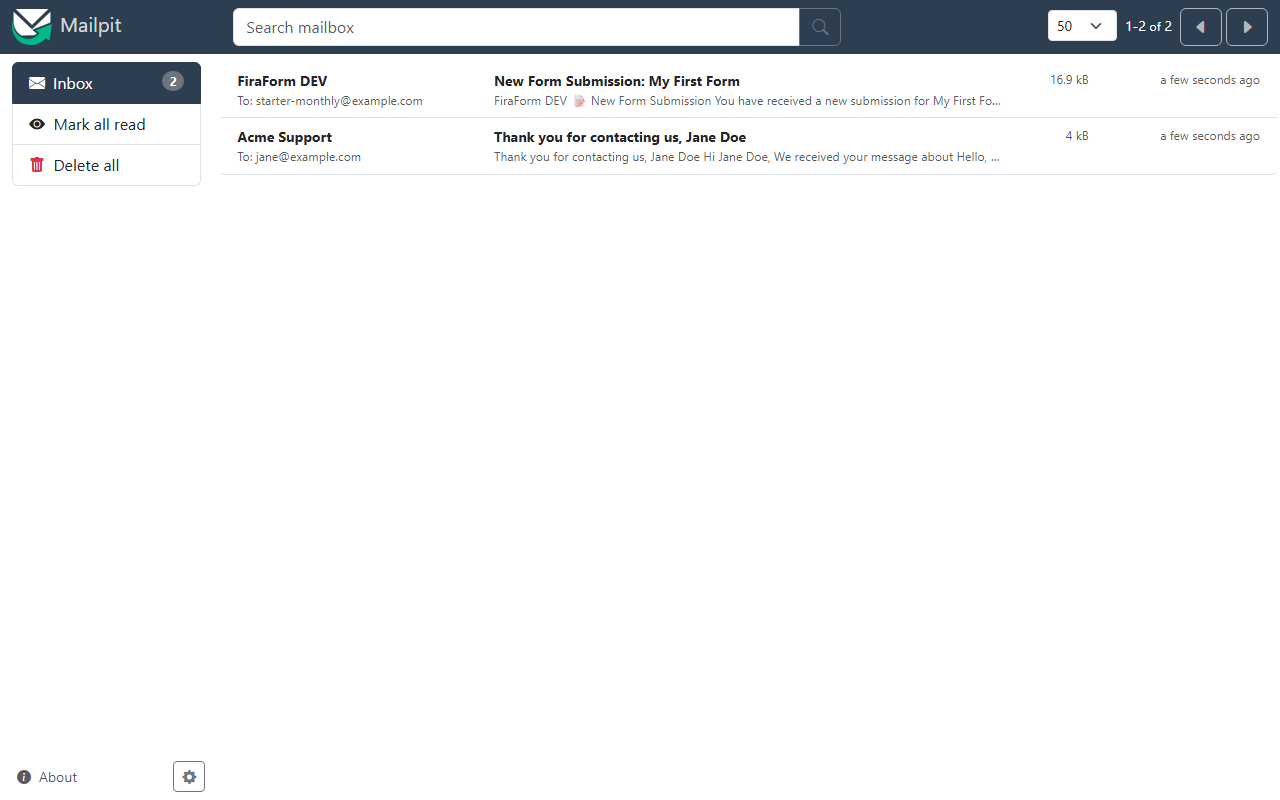
Open the auto-reply message to see exactly what the submitter received — From, Reply-To, Subject, and the rendered email body:
If the email doesn’t arrive, check your spam folder and the Submissions page in Firaform — submissions flagged as spam do not generate an auto-reply.
Spam handling
Firaform’s built-in spam detection runs on every submission. If the content of the form submission is flagged as spam, the auto-response email is not sent. This prevents Firaform from emailing bot-generated addresses and protects your deliverability.
Tips
- Match your form field
nameattributes exactly when using{{field_name}}placeholders — they are case-sensitive. - Auto-reply is queued and processed asynchronously, so it does not slow down the form submission response.
- The body is plain text; line breaks are preserved and HTML is not rendered.
- Test with a real email before relying on it for production traffic.
- To turn auto-reply off, untick Enable auto-reply email and save.
For more configuration options, see the Form Settings docs.
Need Forms For Your Static Site?
FiraForm is the headless form backend built specifically for static sites. No backend code needed—just point your forms to our endpoint and we'll handle submissions, validation, notifications, and more.
Free tier available • No credit card required